This section supplements the “LIS-SV”
product manual. The parameters described here are only available if the LIS-SV
is used in an ABULiner control unit.
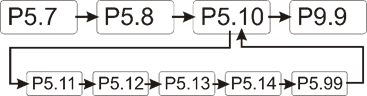
Overview of the
'ABULiner' parameter level
The following parameters can be set in the 'ABULiner'
parameter level of the LIS-SV.
|

|
Danger during setting work!
During setting work on the LIS-SV, monitoring of
the wire rope hoist is switched off. This means the wire rope hoist cannot
be monitored for excess load, among other things. This means the
wire rope hoist cannot be monitored for excess load, among other
things.
This in turn means the load could fall and kill or
injure people!
Do not use the crane for normal work during
setting work, and only lift loads very carefully for test
purposes! |
All LIS-SV parameters which are important for the ABULiner
are combined in a separate parameter level, which is shown as a submenu.
 Move the load hook out of
the limit switch range (up or down).
Move the load hook out of
the limit switch range (up or down).
During parameter setting, the load hook must not be within the
limit switch range.
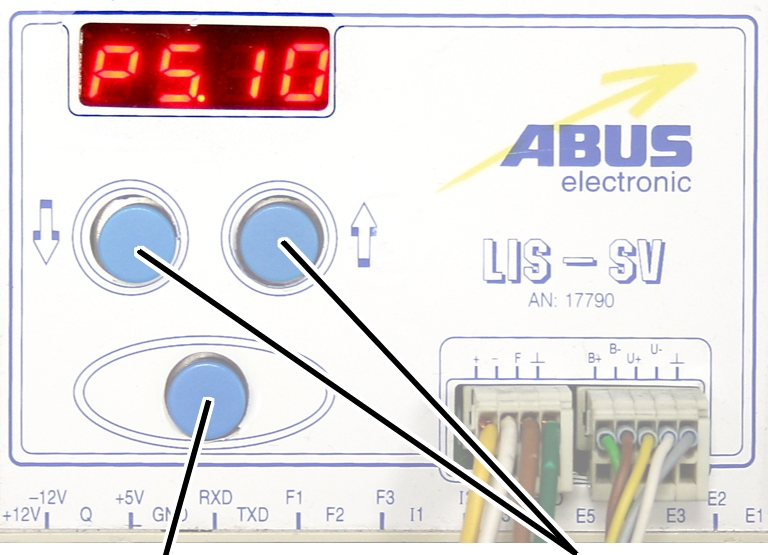
Open the menu of the
LIS-SV. See the documentation “Load indicator system LIS-SV”.
|
|
|
Enter
button |
Arrow
buttons |
 Select parameter 5.10.
Press ENTER.
● The
'ABULiner' parameter level is activated.
● Parameter
5.11 is displayed.
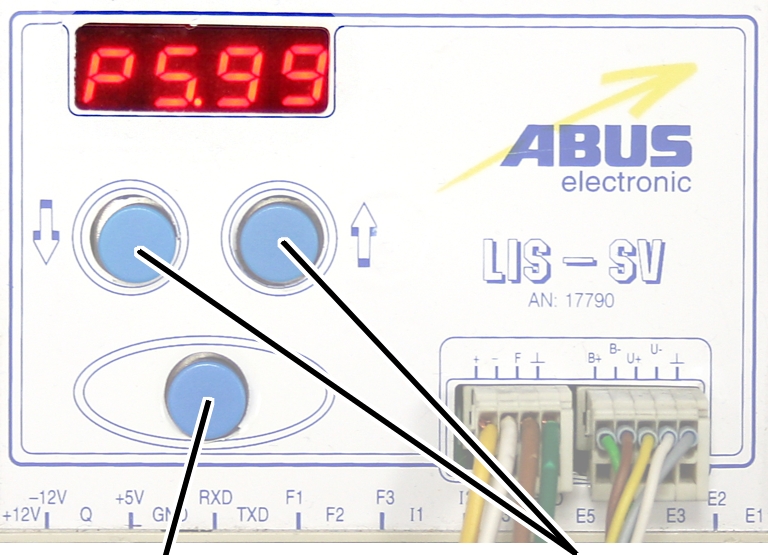
Exiting the
'ABULiner' parameter level
|
|
|
Enter
button |
Arrow
buttons |
Select parameter 5.99.
Press ENTER.
● The
previous parameter level is reactivated.
● Parameter
5.10 is displayed.
The LIS-SV is automatically activated for the ABULiner if a
value is entered for the parameter 5.11.
In the ABULiner mode (a value is set for parameter 5.11):
─ The
LIS-SV can monitor the total load for a maximum of two wire rope hoists.
─ Input F3
(normally used for measuring the load of wire rope hoist 3) now serves in
monitoring the current rotational frequency of the hoist motor.
─ A value
can be entered for parameter 3.0 (maximum load capacity of wire rope hoist 3).
If a value is entered for this, parameter 5.11 cannot be set.
─ This
interlocking thus excludes an incorrect setting.
─ The
load-controlled switching point at output TxD of the LIS-SV cannot be used.
─
Parameter 4.5 (setting for load-controlled switching point) is not available.
In the normal mode (no value is set for parameter 5.11):
─
Operation of the ABULiner Lifting/Lowering unit is not possible.
─ The
LIS-SV can monitor the total load for up to three wire rope hoists.
─ Input F3
serves in measuring the load of a third wire rope hoist.
─ A value
can be entered for parameter 5.11 (gear ratio). If a value is entered for this,
parameter 3.0 cannot be set.
─ This
interlocking thus excludes an incorrect setting.
─ The
load-controlled switching point at output TxD of the LIS-SV can be used.
─
Parameter 4.5 (setting for load-controlled switching point) can be used.
The LIS-SV uses the signal of the encoder and the gear ratio
of the hoisting gear to calculate the hook travel distance, the maximum distance
in the limit switch range and the current rotational frequency of the hoist
motor. The gear ratio must be set on the machine.
|
|
|
Cable
speed |
|
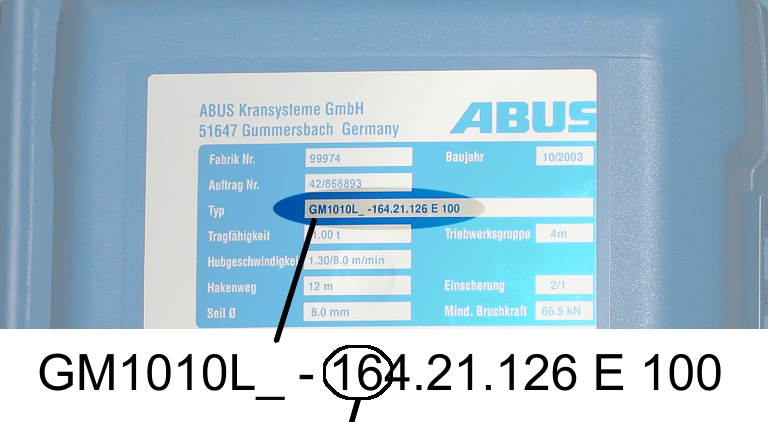
Read off the type
designation at the type plate of the wire rope hoist.
Read off the cable
speed.
From this table, select
the gear ratio that matches the cable speed.
|
|
Cable
speed |
|
Hoist motor GM |
32 m/min at 50 Hz
38 m/min at 60
Hz |
25 m/min at 50 Hz
30 m/min at 60
Hz |
20 m/min at 50 Hz
24 m/min at 60
Hz |
16 m/min at 50 Hz
19 m/min at 60
Hz |
|
800.4 |
50.01 |
63.49 |
77.77 |
98.16 |
|
800.5 |
47.03 |
60.04 |
74.66 |
95.03 |
|
1000.6 |
54.43 |
68.91 |
84.00 |
105.1 |
|
1000.7 |
54.60 |
68.06 |
81.45 |
104.6 |
|
2000.3 |
58.22 |
74.23 |
91.19 |
118.4 |
|
3000.4 |
73.61 |
93.92 |
118.4 |
152.9 |
|
5000.3 |
85.14 |
109.3 |
132.8 |
169.0 |
|
5000.4 |
80.20 |
104.9 |
127.7 |
160.6 |
|
6000.3 |
94.69 |
118.5 |
149.6 |
182.7 |
|
7000.1 |
118.0 |
148.3 |
182.6 |
232.0 |
|
|
|
|
|
|
Table: Gear ratios (numerical values) depending on
hoist motor (lines) and cable speeds (columns) at 50 and 60 Hz.
|
|
|
Enter
button |
Arrow
buttons |
Move the load hook out of
the limit switch range (up or down).
During parameter setting, the load hook must not be within the
limit switch range.
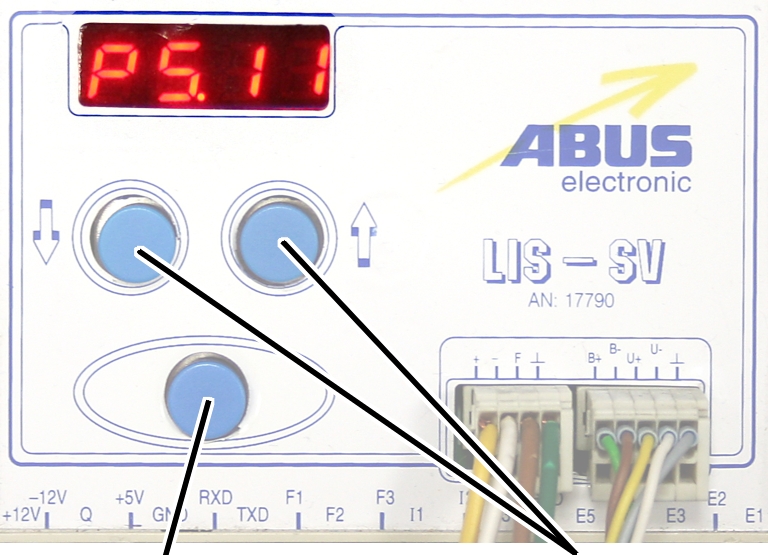
Select parameter 5.11.
Press ENTER.
● The set
value is displayed.
If the value is 0.00, the function is deactivated.
● Hold ENTER
pressed.
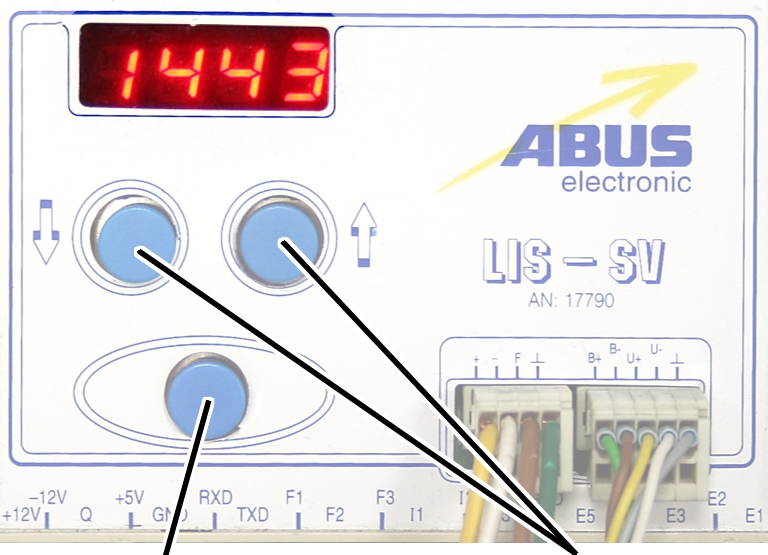
● CODE is
displayed.
Hold ENTER pressed.
|
|
|
Enter
button |
Arrow
buttons |
Enter the code 1443.
Press ENTER briefly.
|
|
|
Enter
button |
Arrow
buttons |
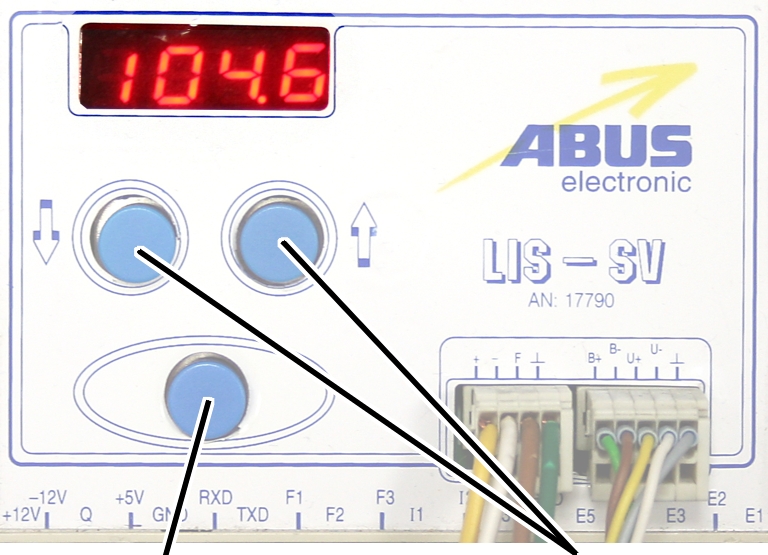
Set the value from the
table.
If the display ‘0.00’ cannot be changed, a value is set in
parameter 3.0. In this case, set the value to zero first.
Press ENTER briefly.
=link= | Magicsee R1 User Manual
Specifically designed for VR navigation or using the remote as a remote shutter for your camera.
UI/UX flow (first-boot example)
The Magicsee R1 features four primary modes to suit different activities. To switch modes, hold the and press one of the action buttons ( A, B, X, or Y ). 🕹️ Media & Mouse Mode (M + A)
Press @ + B to enter iCade mode for specific retro-style games available on the App Store. 4. Button Functions in Detail Magicsee R1 User Manual
If the remote feels sluggish in the initial setup, plug in a USB mouse immediately.
To use the remote control, simply point it at the device and press the desired button. You can also use the Magicsee R1's built-in voice control feature, which allows you to search for content, control playback, and access various settings using voice commands.
Located at the bottom for charging the built-in lithium battery. 2. How to Pair the Magicsee R1 Specifically designed for VR navigation or using the
Hi everyone,
Look for "Magicsee R1" in the list of available devices and tap to connect.
The trigger-style buttons or the "A" button typically act as the "click" for cardboard apps. 6. Troubleshooting Common Issues Remote Not Found in Bluetooth List 🕹️ Media & Mouse Mode (M + A)
The remote functions differently based on the mode you activate. Hold the button and press one of the following to switch: Amazon.com Mode + A (Music Mode): Controls volume, play/pause, and track skipping. Mode + B (Game Mode): Horizontal orientation for two-handed gaming. Mode + C (VR/Video Mode): Standard vertical mode for VR navigation. Mode + D (Mouse Mode): The joystick controls a cursor on the screen. 🛠️ Function Map Function (Standard Mode) 360° navigation / volume control Enter / OK Return / Back C / D Buttons Mode-specific functions (e.g., shutter for selfies) Side Switch Toggle between compatibility 🔋 Power and Charging Connect via the port at the bottom. LED Indicators: Red Light: Light Off: Fully charged. Battery Life: Offers approximately 40–120 hours of active use and up to on standby. Auto-Sleep:
Like any device, the Magicsee R1 can sometimes experience issues. Here are some common problems and their solutions:
Only for auxiliary fans
The auxiliary fan of the hoist motor continues to run for
several minutes after the lifting or lowering. This ensures that the hoist motor
is adequately cooled even at slow lifting speeds. The run-on time can be
adjusted.
|
|
|
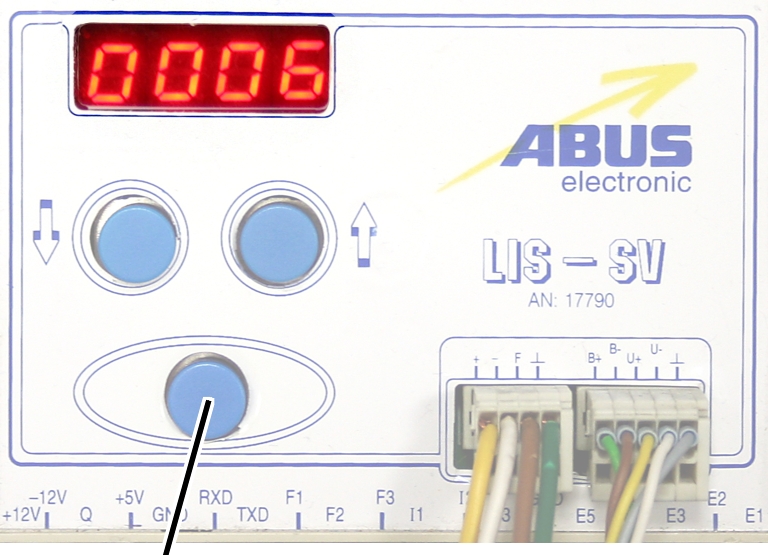
Enter
button |
Arrow
buttons |
Move the load hook out of
the limit switch range (up or down).
During parameter setting, the load hook must not be within the
limit switch range.
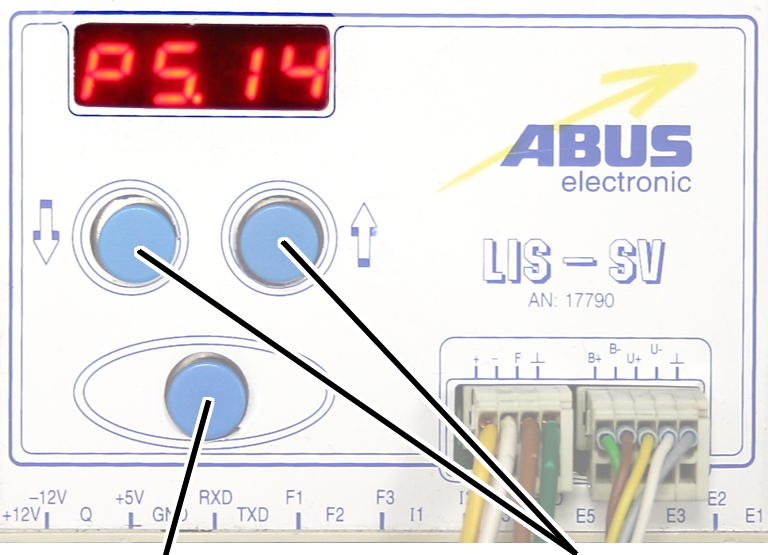
Select parameter 5.14.
Press ENTER.
● The set
value is displayed.
|
|
|
Enter
button |
|
Set the value to between 3
and 10 minutes using the arrow buttons.
Press ENTER.